 ePOE feature guide3 min read
Controller Support: Keep Your Tools Within Reach
Run ePOE's hotkeys and navigate its panels from a game controller, with an optional exclusive mode that keeps the game from seeing the pad while a panel is open.


Run ePOE's hotkeys and navigate its panels from a game controller, with an optional exclusive mode that keeps the game from seeing the pad while a panel is open.
Bind any action to a controller chord on Xbox, PlayStation or Nintendo pads, assign buttons on a controller diagram, and move through ePOE panels with the D-pad. Price-check the item focused by the controller, steer the Selection Wheel with the right stick, and feel a rumble cue when a check lands. Keyboard and mouse keep working alongside.
Where to start
Overlays → Controller. Controller chords are set there, not under Hotkeys.
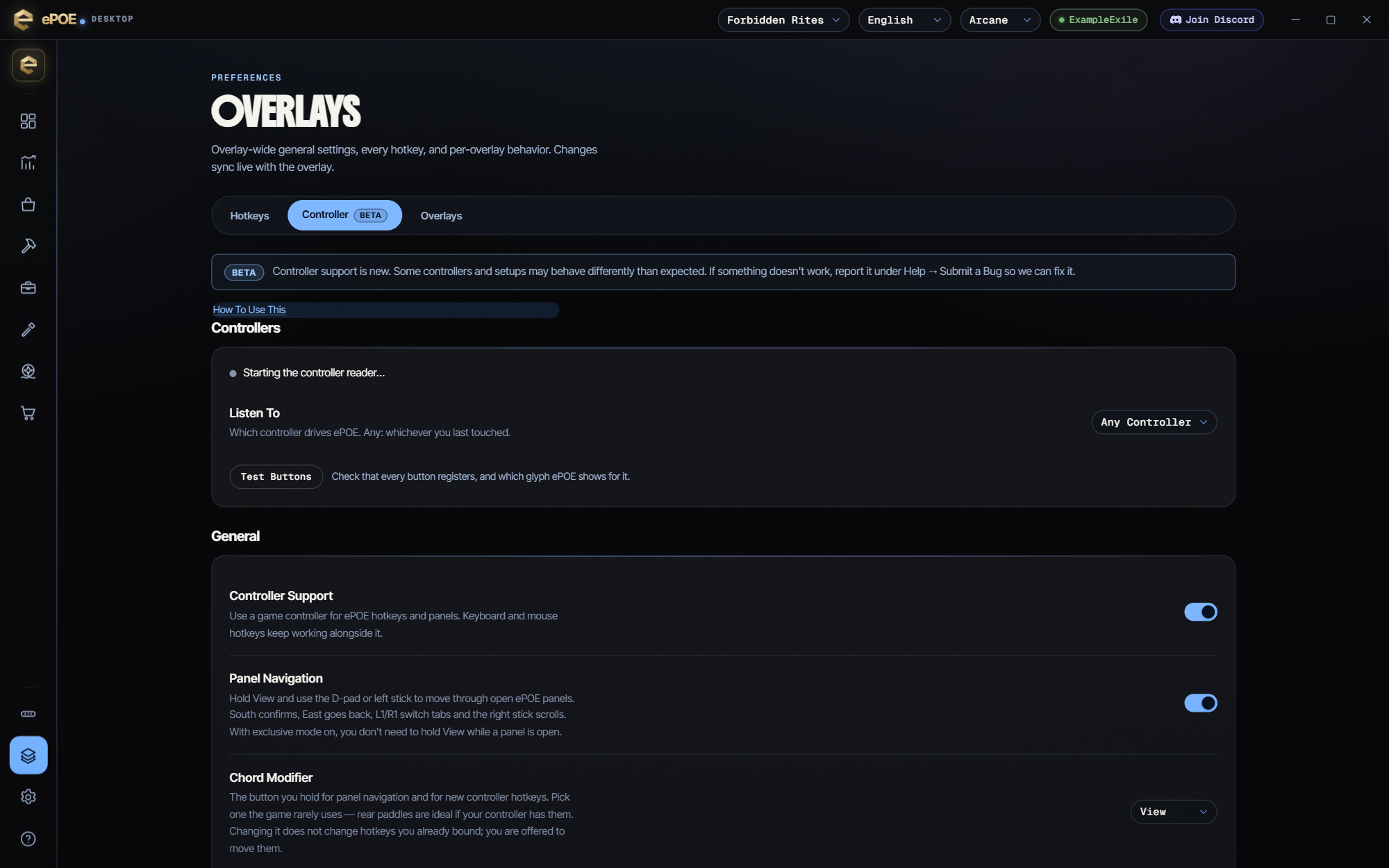
- Connect the controller and open Overlays → Controller; it shows up under Controllers straight away. Map it with the wizard if its layout is unknown.
- Leave Controller Support and Panel Navigation on under General, and pick the Chord Modifier you hold for chords (View / Back by default).
- Use the default chords — View + Y price check, View + X toggle overlay, View + R3 Selection Wheel (only when the Feature Bar page's Launcher allows the wheel), View + Menu dashboard — or rebind any hotkey under Controller Hotkeys. Bindings are positional, so they work on any pad.
- In a panel, hold the modifier and use the D-pad or left stick to move; South confirms, East goes back, L1/R1 switch tabs and the right stick scrolls.
- Turn on Exclusive Mode (Windows: ViGEmBus and HidHide; Linux: Set Up Permissions) so the game gets a neutral controller while a panel is open — no modifier needed then. Restore Controller undoes the hiding if anything goes wrong.
- Round it off under General: Cursorless Price Check checks the item the stick has focused rather than the one under the mouse, and Rumble Feedback buzzes the pad on events like a finished check, with an intensity slider.
Exclusive mode
Optional, and off by default. While an ePOE panel is open the game receives a controller at rest — nothing pressed, sticks centered — so navigating ePOE never moves your character, and you no longer need to hold the modifier. With no panel open, every input reaches the game exactly as you press it. A button still held when the panel closes is ignored until you let go.
What it never does: press, repeat, time or remap anything for you. Every action the game receives is one you made, one-to-one. The only thing it adds is holding input back while a panel is open.
- Windows needs two free, signed drivers, each with an Install button: ViGEmBus (the virtual Xbox controller the game plays with — in-game prompts show Xbox glyphs) and HidHide (hides your real pad from everything except ePOE). Install, press Check Again, pick the Controller To Take Over, then Enable Exclusive Mode. If the game was already running, reconnect your controller once so the game lets go of it; starting ePOE before the game avoids this.
- Linux needs no drivers. Set Up Permissions installs a one-time rule (you are asked for your password) that lets ePOE create a virtual copy of your pad. PlayStation pads read through Steam Input bypass the hold — turn Steam Input off for the game.
Navigating ePOE panels
With a panel, the Selection Wheel or the dashboard showing, hold the modifier and use the D-pad or left stick to move the focus. South (A) confirms, East (B) goes back, the bumpers (LB/RB, L1/R1 on PlayStation) switch tabs, the right stick scrolls. The modifier is needed because the game sees the pad too — without exclusive mode, those presses reach your character as well.
Try it in your next session
Start with the first action in the walkthrough, check the values and state the app shows, then continue with the settings that suit your character or workflow. Your own configured hotkeys and selected league take priority over an example in a screenshot.
Download ePOE · Read the current changelog · Browse the guides