 ePOE feature guide3 min read
Notepad in ePOE: A Practical Guide
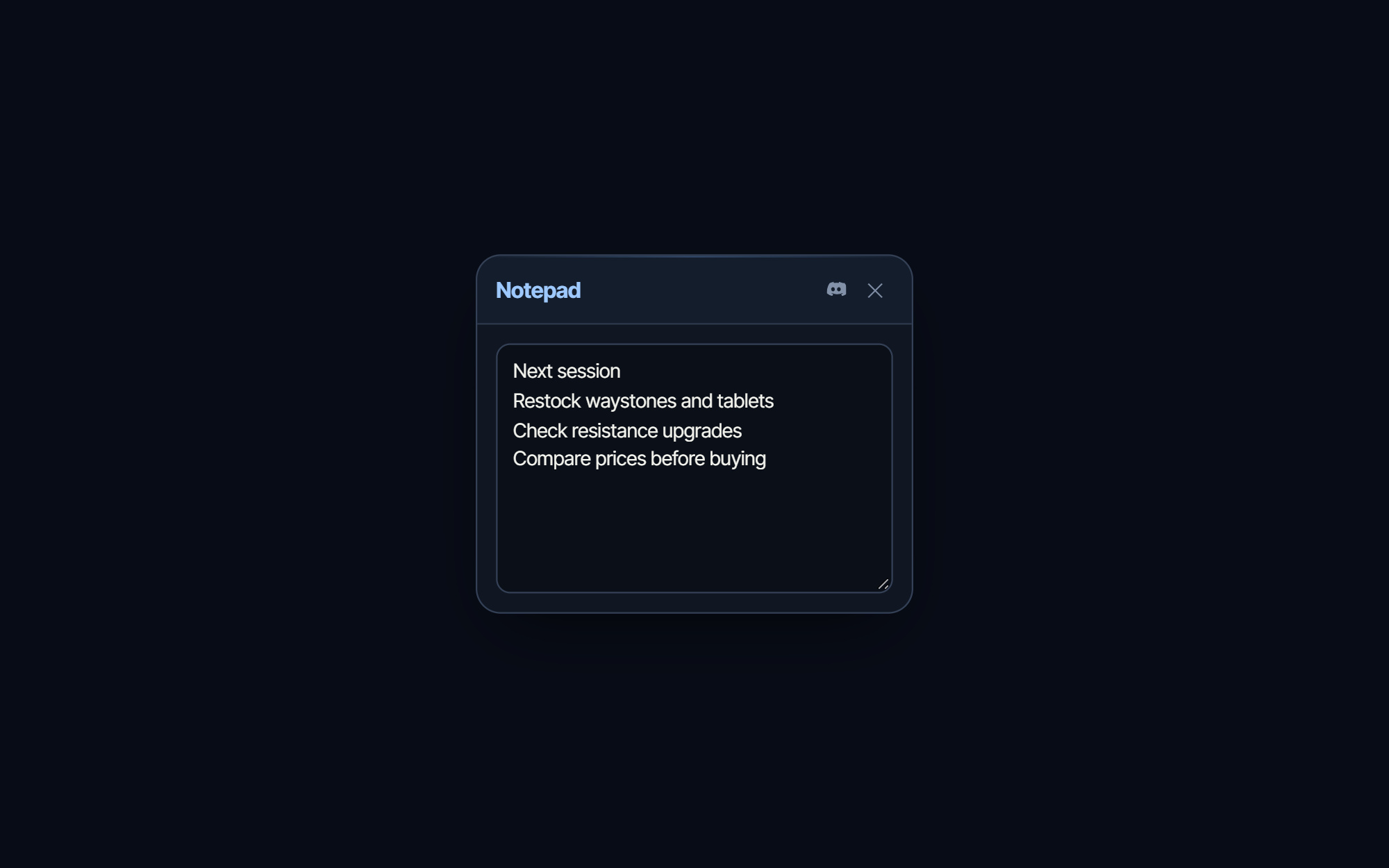
A sticky note that persists between sessions.


A sticky note that persists between sessions.
A floating timer and a sticky notepad that remembers what you wrote. Both open from the feature bar, or from keys you bind.
Where to start
Open Overlays in ePOE Desktop. If your layout differs, use Help to search for Notepad.
If you prefer a keyboard shortcut, check this feature’s current binding under Overlays → Hotkeys. Bindings can be changed, so use the one shown in your app.
- Press the hotkey to toggle it.
- Its text is saved, so it's the right place for a price you agreed or a whisper you're about to send.
The four widgets
Recent Price Checks lists your latest checks: item name, the price ePOE recorded, and how long ago. Click a row to reopen that search on the trade site — cheaper than re-checking, and it does not touch the rate limit. Clear empties the list.
Characters lists your Path of Exile 2 characters — name, class, level, league. Click one to see its equipped items. It needs your pathofexile.com session; if it is not connected, the widget offers Connect PoE Account (the same connection as Settings → Connections → Live Session). Import from poe.ninja takes a poe.ninja character link (`poe.ninja/poe2/profile/…/character/…`) and loads that character instead.
Stopwatch is a plain Start / Stop / Reset timer, shown as minutes and seconds (hours once it passes one). Use it for timing one thing, like a map or a boss attempt.
Notepad is a text box that saves automatically as you type. The right place for the price you agreed or the whisper you are about to send.
Each widget has its own switch under Overlays → Overlays. Turn off the ones you never use and they disappear from the bar and wheel as well.
Chat commands
Seven templates ship under Overlays → Overlays → Trade & Whisper: Invite (`/invite {name}`), Trade (`/tradewith {name}`), Thank, Kick, Hideout, Leave and Exit to character select. `{name}` is replaced with the character who whispered you most recently.
Two have hotkeys out of the box: Ctrl+Alt+1 invites your last whisperer and Ctrl+Alt+2 opens a trade with them. Give the others a key in the same row, edit any template, or Add command for your own.
Running one focuses the game, opens chat, pastes the line and sends it — one line per press, only when you ask. If the overlay is not attached to the game, the line is copied to your clipboard instead. Incoming trade whispers also appear as cards with Invite, Trade, Thank and Kick buttons that use these same templates.
Try it in your next session
Start with the first action in the walkthrough, check the values and state the app shows, then continue with the settings that suit your character or workflow. Your own configured hotkeys and selected league take priority over an example in a screenshot.
Download ePOE · Read the current changelog · Browse the guides