 ePOE feature guide3 min read
Guides in game in ePOE: A Practical Guide
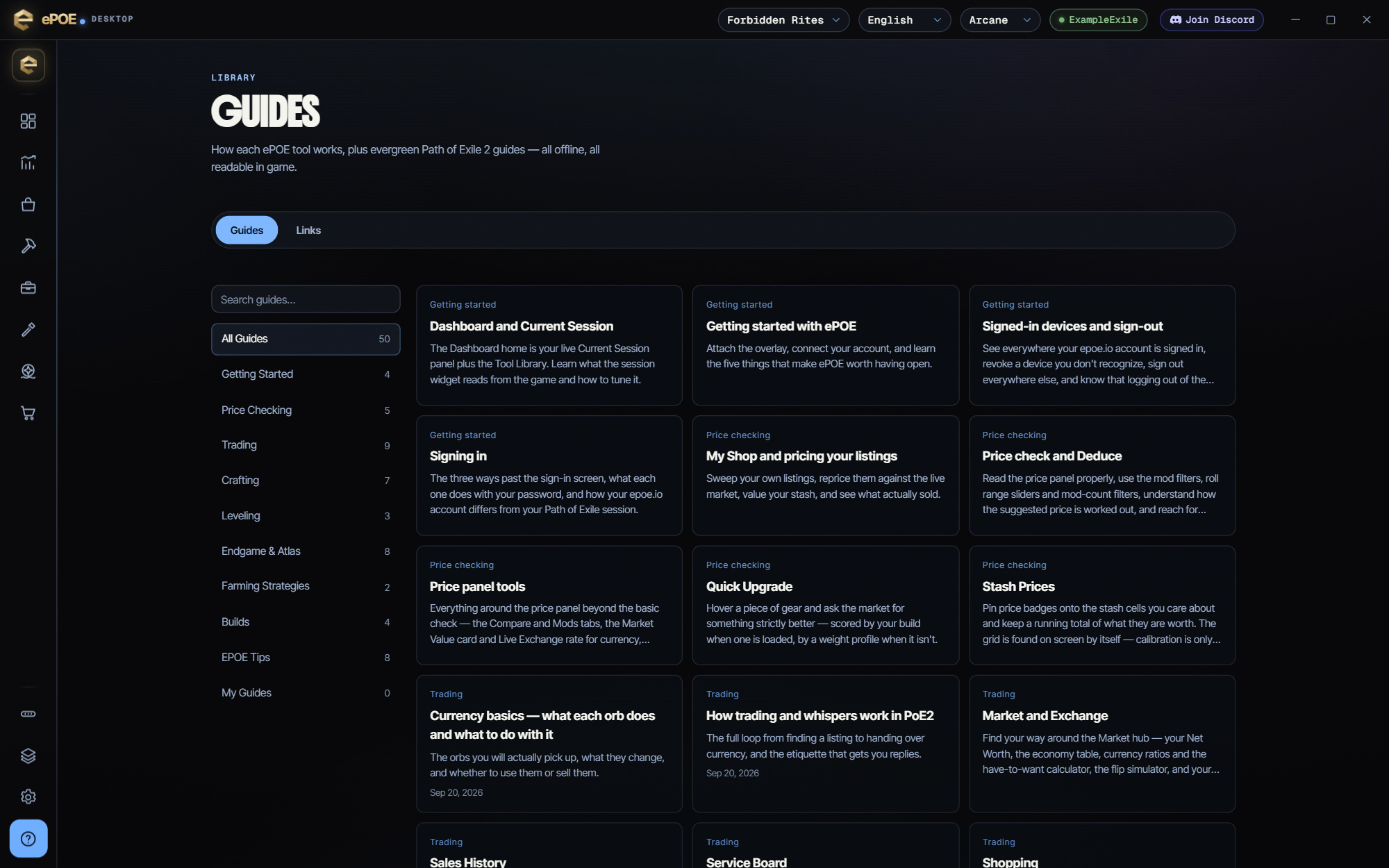
Keeps the offline guide library open as a window over Path of Exile 2, so a leveling or farming guide stays readable while you play.


Keeps the offline guide library open as a window over Path of Exile 2, so a leveling or farming guide stays readable while you play.
Offline guides written for ePOE plus evergreen PoE2 subjects, your own .md guides, a Links hub, and a Help center that shows the hotkey you actually bound.
Where to start
Unbound by default; the Feature Bar's Guides button opens the library too.
If you prefer a keyboard shortcut, check this feature’s current binding under Overlays → Hotkeys. Bindings can be changed, so use the one shown in your app.
- Press the hotkey, or the Feature Bar's Guides button, to open the library as a window over the game.
- Open any guide, then press Open in game to keep that one up over Path of Exile 2.
- Under Your own guides, press New guide to create a starter .md file, or drop your own .md files in the guides folder; Open folder opens it. ePOE picks up your edits when you come back to the window.
- The Links tab beside the library holds tiles for the official sites and community tools; add your own with a Tile name and an http or https address, then Add tile.
Step 5 — put the tools you use where you can reach them
Three places, deliberately:
- Feature bar (in game) — pick which buttons appear on the Feature Bar page, pinned at the bottom of the rail, under Buttons. See the selection wheel and favorites guide for the wheel alternative.
- Dashboard home — pin any tool as a favorite with its star. The Artwork / Compact / List switch at the top of the tile groups is per-taste and remembered.
- Tool windows — any dashboard page can open as its own frameless window over the game. That is what the feature-bar buttons do, and it is why the "Open in game" button in this library exists.
Step 1 — start the game, then check the attach toast
Launch Path of Exile 2 in Windowed or Borderless Windowed. Exclusive Fullscreen hides everything drawn on top of the game, including ePOE.
When ePOE finds the game window it attaches and shows a short "overlay attached" toast in the corner. If the toast never appears:
- Confirm the game is not in Exclusive Fullscreen.
- Check Settings → General for the window title ePOE is looking for (`Path of Exile 2`). A non-English client or a launcher wrapper can change it.
- Multiple monitors: the same Settings → General section picks which screen the standalone windows open on.
Once attached you should see the feature bar — a slim strip of icons pinned over the game's XP bar. Drag it anywhere; ePOE remembers where you put it.
What ePOE does not do
Worth saying plainly, because it is the part people ask about:
- It reads the clipboard and Client.txt. It does not read game memory, inject code, or automate play.
- Keystrokes it sends are the ones you just pressed a button for: opening chat to send one whisper or chat command, or `Ctrl+F` / `Ctrl+A` / `Ctrl+V` to paste a regex. It never presses Enter in a search box, and pastes are capped at 250 characters — the game's own limit.
- Screen reading (OCR) looks only at small, bounded regions of the screen, only for the tools that need them, and runs on your own PC.
Try it in your next session
Start with the first action in the walkthrough, check the values and state the app shows, then continue with the settings that suit your character or workflow. Your own configured hotkeys and selected league take priority over an example in a screenshot.
Download ePOE · Read the current changelog · Browse the guides