 ePOE feature guide2 Min. Lesezeit
Expedition Chain: Put Your Best Rewards in Order
Plans which Remnants to detonate, and in what order, so the best runes cascade down the chain.


Plans which Remnants to detonate, and in what order, so the best runes cascade down the chain.
Plans the order to detonate Remnants in and explains every step.
Where to start
The Expedition Chain Planner hotkey opens the Chain popout. It is on by default; its options are under Overlays → Overlays → Expedition Chain.
If you prefer a keyboard shortcut, check this feature’s current binding under Overlays → Hotkeys. Bindings can be changed, so use the one shown in your app.
- Expedition Chain is on by default with its hotkey bound; change the key under Overlays → Hotkeys → Tool windows → Expedition Chain Planner.
- Drop Remnants on the canvas and set their rewards — this works in any language with no screen reading.
- Turn on Scan the site from the screen in its Overlays pane to read the site from the screen instead (experimental, off by default).
- Read the suggested detonation order and show the markers over the game.
- Opening it in game: the hotkey works straight away. To also put it on the Feature Bar (pinned over the XP bar) or in the Selection Wheel, switch on Expedition Chain under Feature Bar → Buttons — it starts off.
The feature in practice
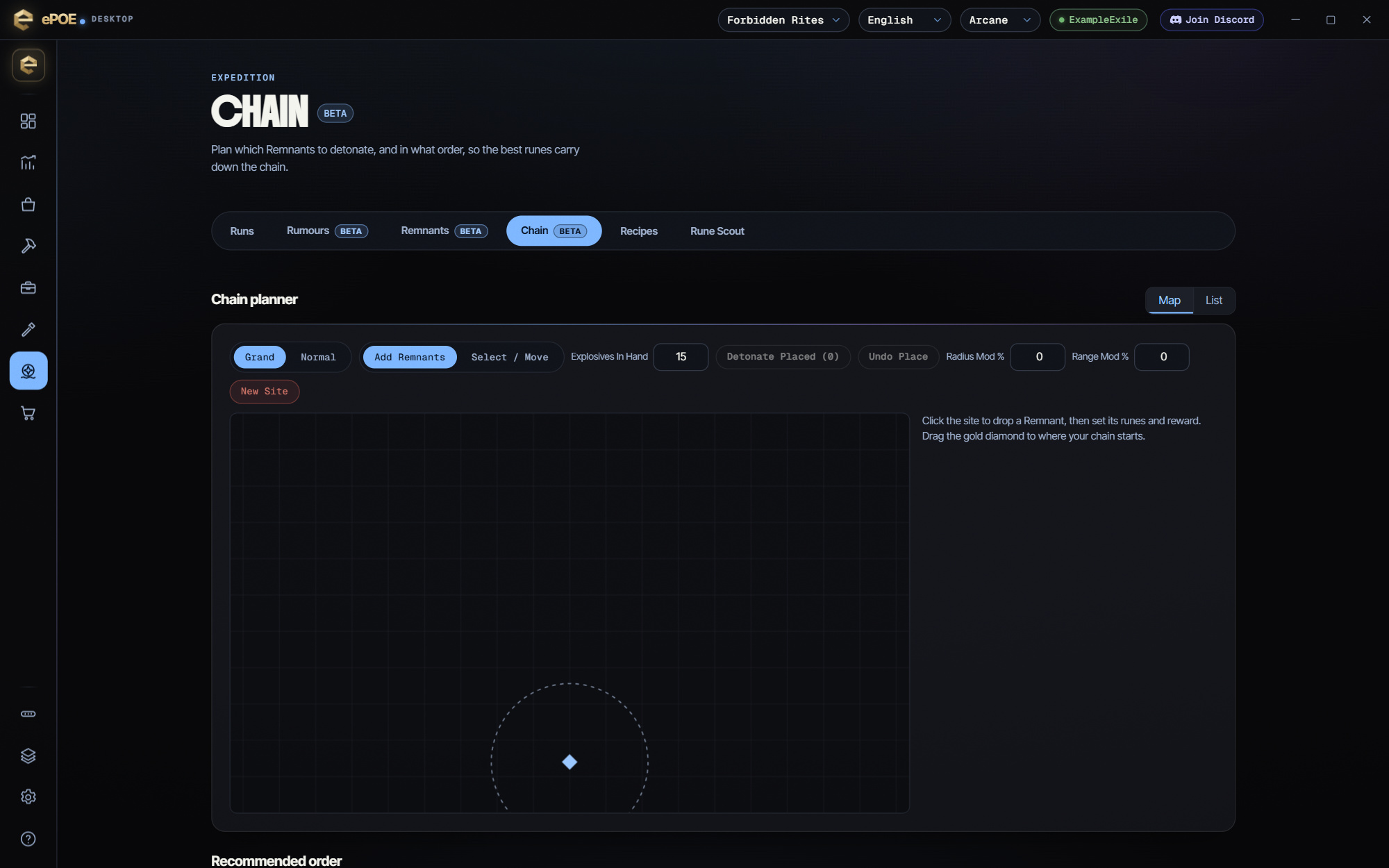
The Chain tab works out which Remnants to detonate, and in what order, so the best runes carry down the chain instead of being wasted.
Following the plan
Set Explosives In Hand. Recommended order then shows the detonation plan, for example "6 explosives, 2 spare · exact search", with the Remnants it leaves alone. While you play:
- Mark Placed follows the next step of the plan.
- Detonate Placed (with a count) detonates what you placed and records it.
- Undo Place takes the last placement back.
- New Site starts a fresh map in the same run. The old site's detonations still count.
Every confirmed detonation lands in Propagating this run, which the Remnants tab shares.
Try it in your next session
Start with the first action in the walkthrough, check the values and state the app shows, then continue with the settings that suit your character or workflow. Your own configured hotkeys and selected league take priority over an example in a screenshot.
Download ePOE · Read the current changelog · Browse the guides