 ePOE feature guide2 min read
Expedition Rumours in ePOE: A Practical Guide
Pools the Island Rumours of one Uncharted Waters tile — scanned off its tooltip or ticked by hand on the bingo grid — and says whether a Saga is worth spending under your chosen rule.


Pools the Island Rumours of one Uncharted Waters tile — scanned off its tooltip or ticked by hand on the bingo grid — and says whether a Saga is worth spending under your chosen rule.
Pools the rumours you see across Saga toggles, tells you whether a Saga is worth spending, and has a manual bingo grid that works in any game language.
Where to start
The Expedition Rumour Scan hotkey reads the hovered tile's tooltip and opens the tracker over the game without taking focus. It is on by default; its options are under Overlays → Overlays → Expedition Rumours.
If you prefer a keyboard shortcut, check this feature’s current binding under Overlays → Hotkeys. Bindings can be changed, so use the one shown in your app.
- Expedition Rumours is on by default with its scan hotkey bound; change the key under Overlays → Hotkeys → Tool windows → Expedition Rumour Scan.
- Hover an Uncharted Waters tile on the Atlas and press the hotkey, or open the tracker and press Scan tooltip.
- Watch the pooled list grow as you re-roll and re-scan the same tile; move an item or toggle a Saga to re-roll the three shown.
- Set the Saga rule under Use a Saga when — Larky's default is 5 Grand Expedition rumours — and read the verdict banner before you spend a Saga.
- No desktop app or scanning? Tick rumours by hand on the bingo grid; it works in any game language.
- Opening it in game: the hotkey works straight away. To also put it on the Feature Bar (pinned over the XP bar) or in the Selection Wheel, switch on Expedition Rumours under Feature Bar → Buttons — it starts off.
The feature in practice
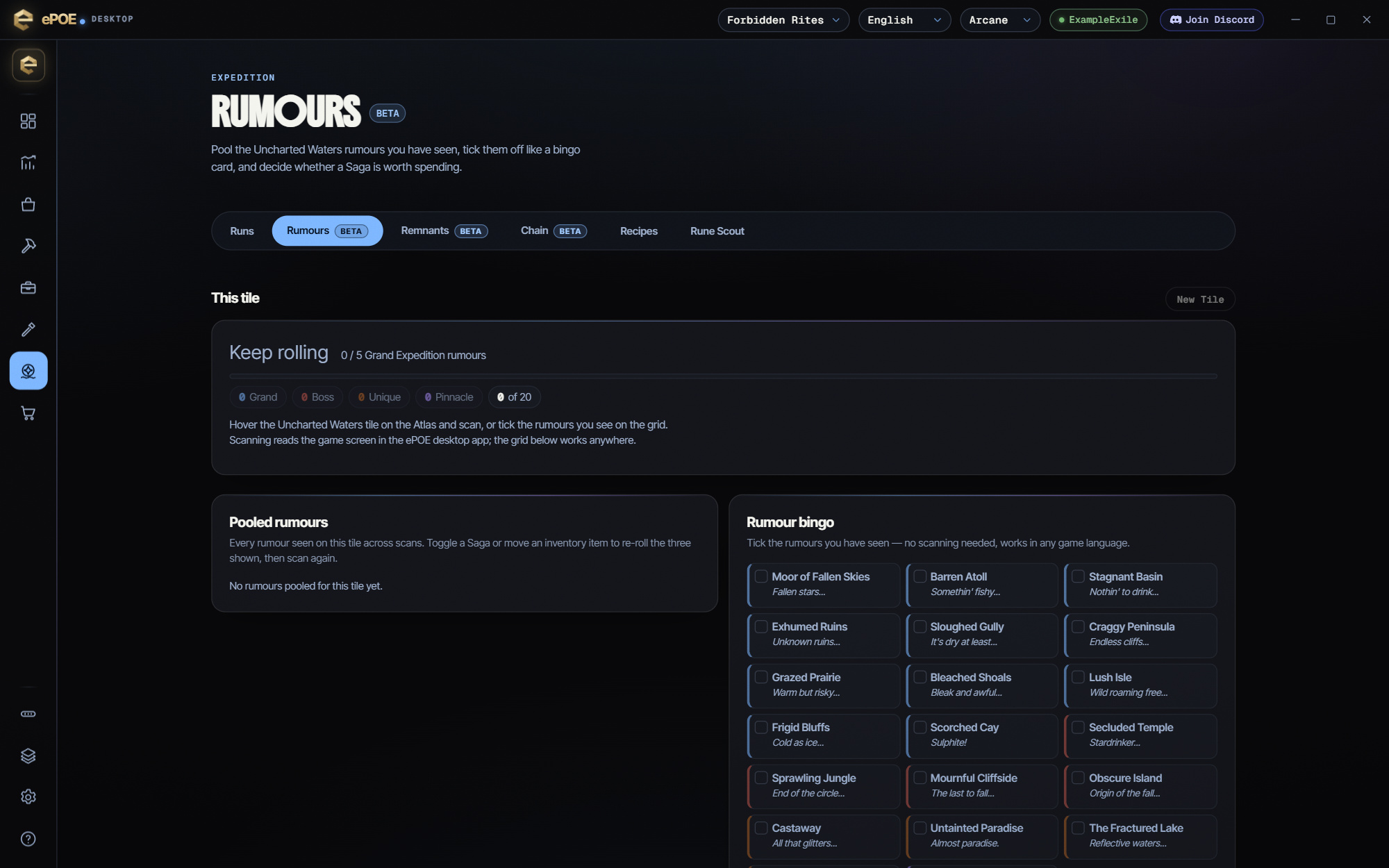
Expedition Rumours collects the Island Rumours you see on one Uncharted Waters tile and tells you whether a Saga is worth spending, so you stop re-rolling good tiles away.
Rumour bingo
Rumour bingo lists All 20 Island Rumours. Tick the ones you have seen. No scanning is needed, and it works in any game language. In the compact window, Add / Edit Manually opens the same grid, so you can correct a read without leaving the game.
Try it in your next session
Start with the first action in the walkthrough, check the values and state the app shows, then continue with the settings that suit your character or workflow. Your own configured hotkeys and selected league take priority over an example in a screenshot.
Download ePOE · Read the current changelog · Browse the guides