 ePOE feature guide2 min read
Selection Wheel in ePOE: A Practical Guide
A radial launcher that opens at your cursor, offering the same tools as the Feature Bar.


A radial launcher that opens at your cursor, offering the same tools as the Feature Bar.
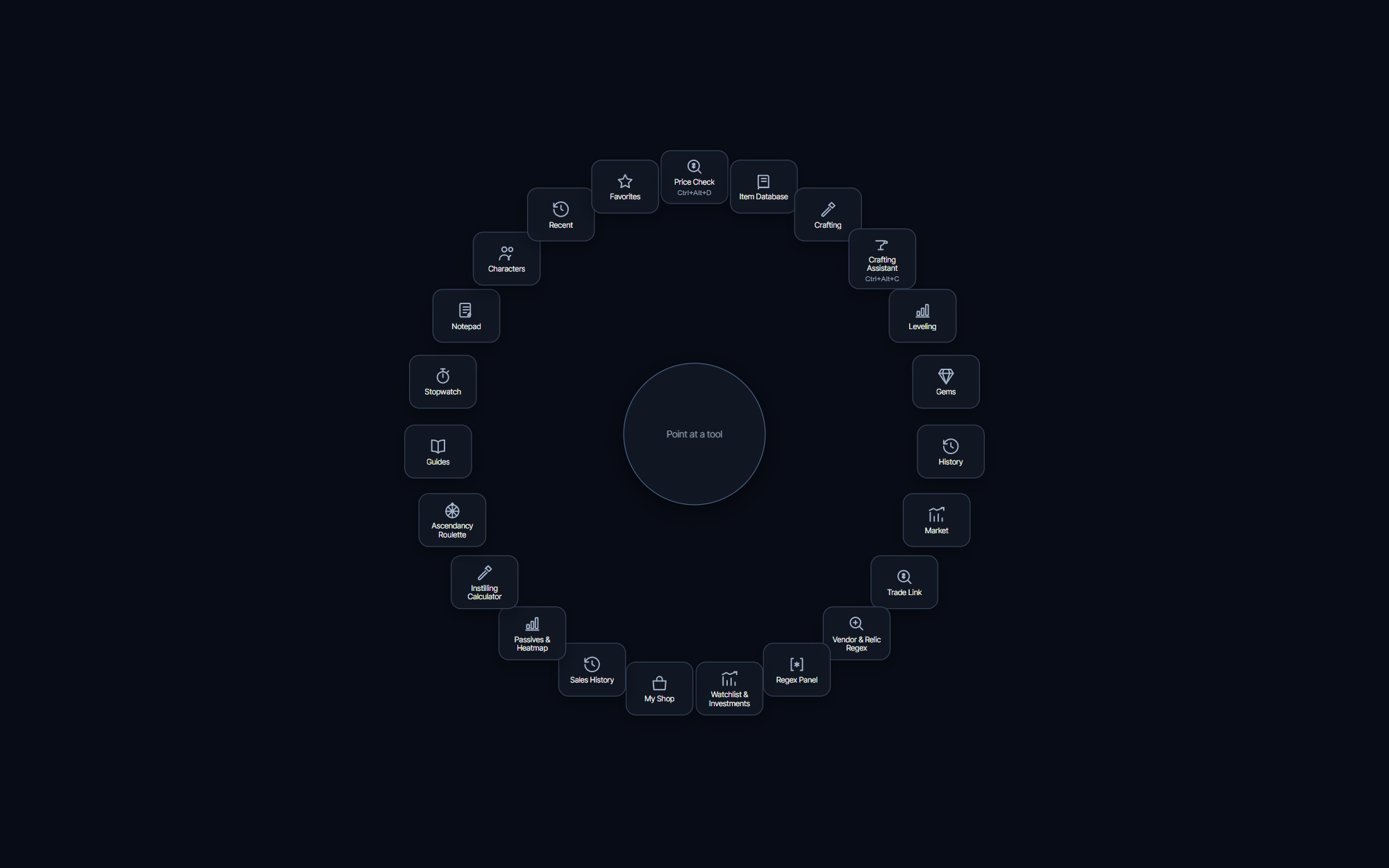
A radial launcher that opens at your cursor with one spoke per enabled tool and the hotkey it answers to. Toggle it or hold it. A Favorites spoke lists your pinned tools and saved trade searches.
Where to start
Needs the Launcher set to Selection Wheel or Both on the Feature Bar page; with the default Feature Bar launcher the wheel hotkey does nothing.
If you prefer a keyboard shortcut, check this feature’s current binding under Overlays → Hotkeys. Bindings can be changed, so use the one shown in your app.
- Open the pinned Feature Bar page and set the Launcher to Selection Wheel or Both.
- Press the hotkey in game; the wheel opens centered on your cursor. On a controller, View + R3 opens it too, under the same Launcher rule.
- Point at a spoke and click, or use the arrow keys and Enter; Escape closes it.
- In the Selection Wheel section of the same page, set the Hotkey and its Hotkey behavior: Toggle (press again to close) or Hold (release to launch what you point at). A mouse-button binding always behaves as Toggle.
- The spokes are the Feature Bar's buttons, so choose them under Feature Bar → Buttons.
The feature in practice
The Selection Wheel is a ring of your tools that opens centered on your cursor. It is the alternative to the Feature Bar for people who would rather not have a strip on screen: nothing is drawn until you ask, and whatever you want is one flick of the mouse away.
Turning it on
The wheel is not active out of the box. On the Feature Bar page (pinned at the bottom of the rail), Launcher decides which in-game launcher exists:
- Feature Bar (the default) — the strip only. The wheel hotkey does nothing.
- Selection Wheel — the wheel only; the strip is hidden.
- Both — the strip stays, and the wheel hotkey works too.
Try it in your next session
Start with the first action in the walkthrough, check the values and state the app shows, then continue with the settings that suit your character or workflow. Your own configured hotkeys and selected league take priority over an example in a screenshot.
Download ePOE · Read the current changelog · Browse the guides