 ePOE feature guide3 min read
Overlays page in ePOE: A Practical Guide
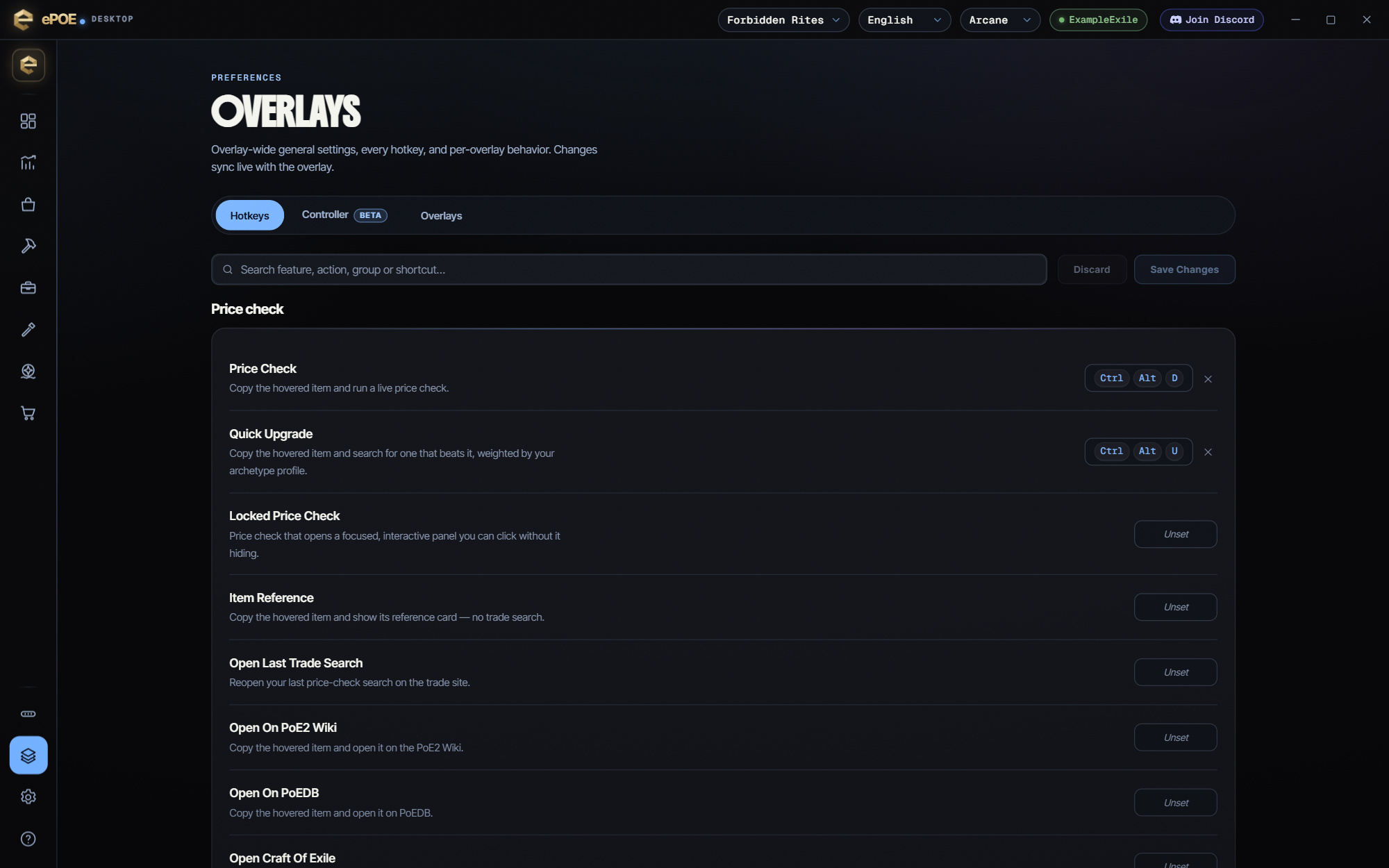
Every hotkey in one place, controller support, and an on/off switch and detail pane per overlay.


Every hotkey in one place, controller support, and an on/off switch and detail pane per overlay.
Where to start
Open Overlays in ePOE Desktop. If your layout differs, use Help to search for Overlays page.
- Hotkeys: every binding in six groups, with a search box and a warning when two share a combination — see the Hotkeys section.
- Controller (Beta): controller chords, panel navigation and exclusive mode.
- Overlays: switch a feature off entirely — its hotkey stops registering and its Feature Bar button hides — or open its pane. Price Check, Rare Filter, Trade & Whisper, Stash Prices, the three Expedition tools, Map Mods and Favorites have settings of their own; the rest are a hotkey and the switch.
- Each pane's How to use this link opens its section here in Help.
- The Feature Bar and Selection Wheel settings have their own pinned Feature Bar page, and app-wide preferences — league, Client.txt, monitor, opacity and text size — live in Settings.
The overlay itself
Multi-monitor: Settings → General decides which screen the standalone windows open on. It applies to the next window you open, not ones already up.
Close-on-game-focus auto-hides the overlay card when the game regains focus. Some people find this essential and others find it maddening; it is off by default.
Restore clipboard puts back whatever you had copied after ePOE copies an item. Off by default because it adds a small delay, on if you routinely have something in your clipboard you care about.
Scroll triggers. By default Ctrl+Scroll sends a left click and Left Alt+Scroll flips stash tabs — up for the next tab, down for the previous one. Both are now configurable under Overlays → Hotkeys → Scroll triggers: pick each trigger's Modifier (Ctrl and Alt must match exactly; Shift is ignored unless you pick it) and what Scroll up and Scroll down do — Left click, Previous stash tab, Next stash tab or Nothing. They only act while Path of Exile 2 is the active window. Give the two triggers different modifiers; if they share one, only the click trigger fires.
Mouse buttons that only do the ePOE thing. A hotkey bound to Mouse 3, 4 or 5 normally reaches the game as well. On Windows, Block Bound Mouse Buttons In Game under Overlays → Hotkeys → Mouse buttons stops that. It is off by default and deliberately narrow:
Streaming and screen sharing
Settings → Privacy → Hide Overlay From Screen Capture (under Streaming & recording, off by default) excludes every ePOE window from screen capture. On Windows this uses the OS's own capture-exclusion, so the windows stay visible on your monitor but can be excluded from supported capture paths. Check your recording preview: behavior depends on OS and capture mode.
A useful side effect: it can also help with the black-box and flicker artifacts that layered overlays sometimes cause in Game Capture, even if you do not care about hiding ePOE.
Want the overlay in your recording instead? Leave the switch off and capture the whole monitor in OBS (Display Capture) rather than Game Capture.
Things ePOE will not do
Worth repeating because it is the question that comes up most:
It reads the clipboard and `Client.txt`, and reads small, bounded regions of the screen, only for the tools that need them. It does not read game memory, inject anything, or play for you.
Keystrokes it sends are the ones you just pressed a button for: opening chat to send one whisper or chat command, or `Ctrl+F`/`Ctrl+A`/`Ctrl+V` to paste a regex. It never presses Enter in a search box — a search box that submits on its own is one step from automation — and it never acts without you asking.
Try it in your next session
Start with the first action in the walkthrough, check the values and state the app shows, then continue with the settings that suit your character or workflow. Your own configured hotkeys and selected league take priority over an example in a screenshot.
Download ePOE · Read the current changelog · Browse the guides