 ePOE feature guide1 min read
Data status in ePOE: A Practical Guide
Which league the bundled data and market prices target, and how fresh each bundled data file is.


Which league the bundled data and market prices target, and how fresh each bundled data file is.
Where to start
Open Settings in ePOE Desktop. If your layout differs, use Help to search for Data status.
- Open Settings → Data.
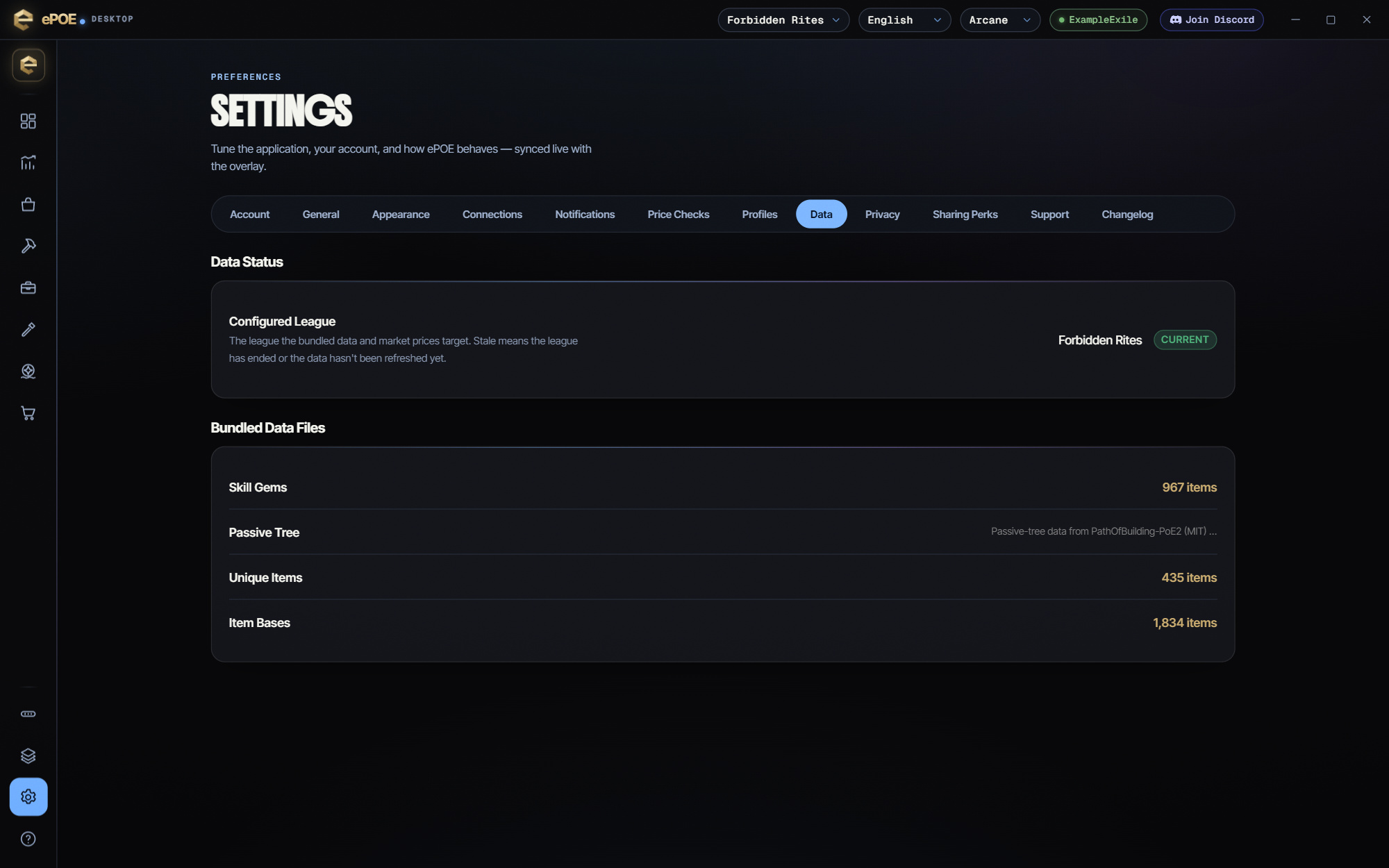
- Check the configured league — stale means the league has ended or the data has not been refreshed yet.
- Read the bundled data files list after a game patch; the data ships with the app, so update ePOE when it is out of date.
Data
The league the bundled data targets and each bundled data file. Stale means the league ended or the data has not been refreshed yet — worth a look after a patch.
Notifications
Which events notify you, whether this PC shows toasts, and Check For Undercuts Every — how often ePOE checks your shop for undercuts while it is open (10 minutes to 24 hours, 6 hours by default). Covered in the last section of this guide.
Try it in your next session
Start with the first action in the walkthrough, check the values and state the app shows, then continue with the settings that suit your character or workflow. Your own configured hotkeys and selected league take priority over an example in a screenshot.
Download ePOE · Read the current changelog · Browse the guides