 ePOE feature guide2 min read
Settings profiles in ePOE: A Practical Guide
Save named snapshots of your price-check, trade and behavior settings, switch between them, and have one apply automatically for a league.


Save named snapshots of your price-check, trade and behavior settings, switch between them, and have one apply automatically for a league.
Where to start
Open Settings in ePOE Desktop. If your layout differs, use Help to search for Settings profiles.
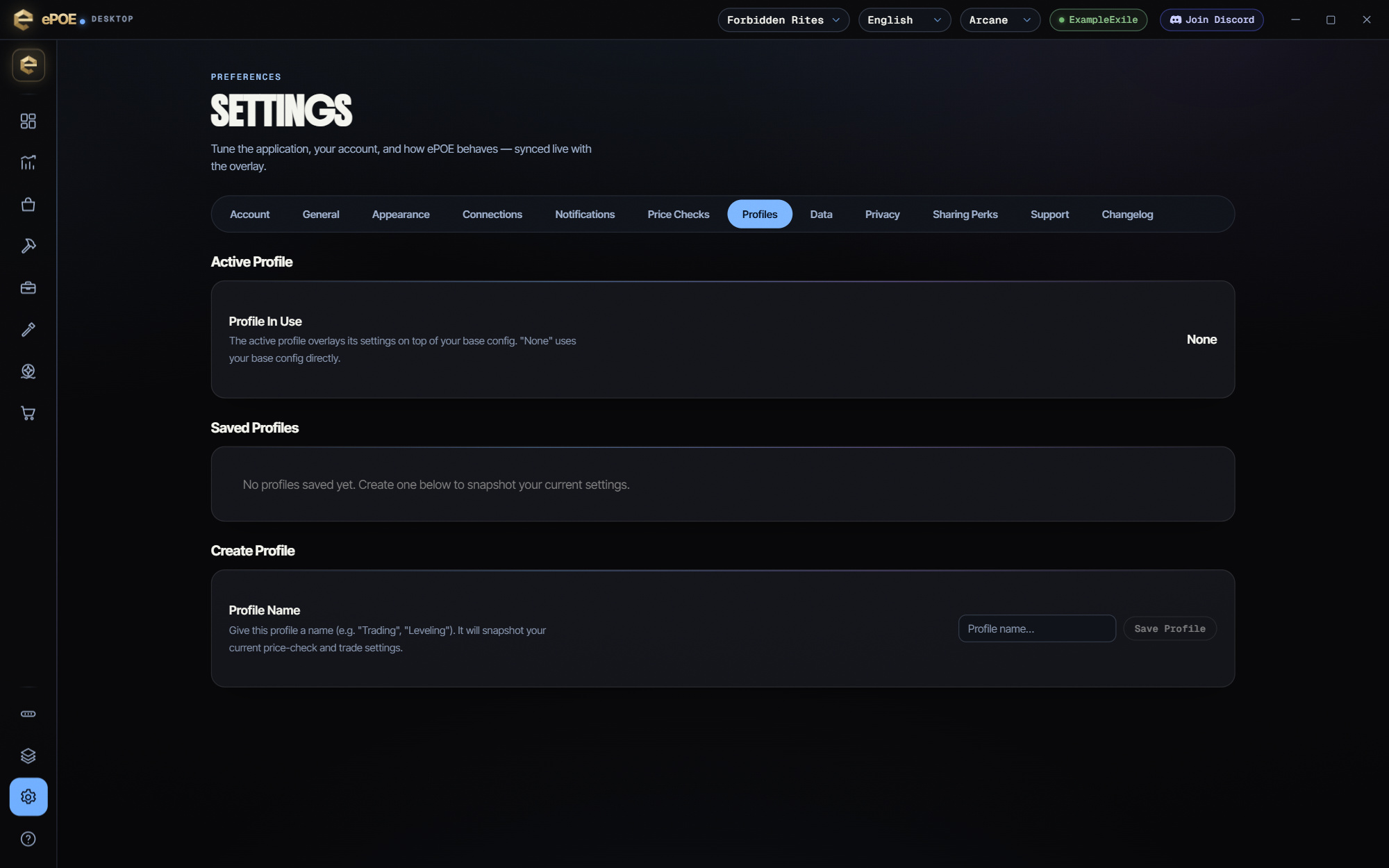
- Open Settings → Profiles. Under Create Profile, type a Profile name and press Save Profile — it captures your current settings.
- Under Saved Profiles, Activate, Deactivate or Delete a profile; Active Profile → Profile in use shows which one applies, or None.
- Bind a profile to a league with its league picker (Not bound to a league by default); it then applies by itself when you switch to that league.
- Hotkeys, league, language and your Path of Exile session are never part of a profile.
- Profiles are stored on this PC only and do not sync. Quick Upgrade weight profiles are separate and do sync.
Profiles
Create Profile snapshots your price-check, trade and behavior settings under a name; Activate applies it. Pick a league in a profile's league picker (it starts as "Not bound to a league") and it applies automatically when you switch to that league. Hotkeys, league, language and your session are never part of a profile. Profiles are stored on this PC only and don't sync.
Price Checks
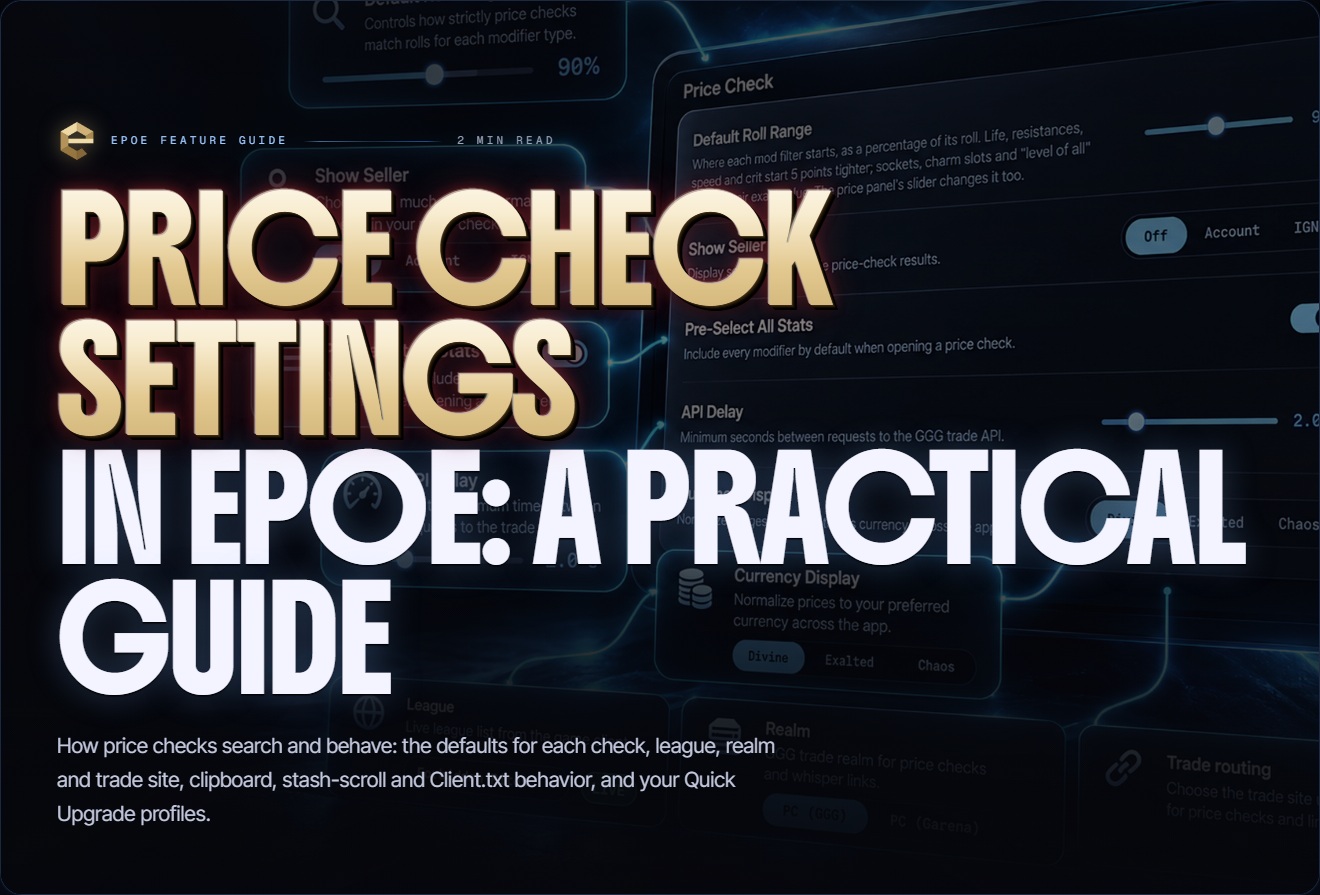
The tab most worth a visit. League and Realm decide where every search runs. Default roll range sets where each mod filter starts, as a percentage of its roll — lower it if checks come back empty. Life, resistances, speed and crit start 5 points tighter, and sockets search their exact value. The price panel's Roll range slider changes the same setting. Pre-select all stats, Show seller, API delay and Currency display tune the results. Under Behavior: Restore clipboard, Close on game focus, Stash scroll (Left Alt+Scroll flips stash tabs) and Read Client.txt, which live whispers and zone tracking need. Quick Upgrade profiles lists profiles you imported and which one is the default.
Try it in your next session
Start with the first action in the walkthrough, check the values and state the app shows, then continue with the settings that suit your character or workflow. Your own configured hotkeys and selected league take priority over an example in a screenshot.
Download ePOE · Read the current changelog · Browse the guides