 ePOE feature guide3 min read
Price panel tools in ePOE: A Practical Guide
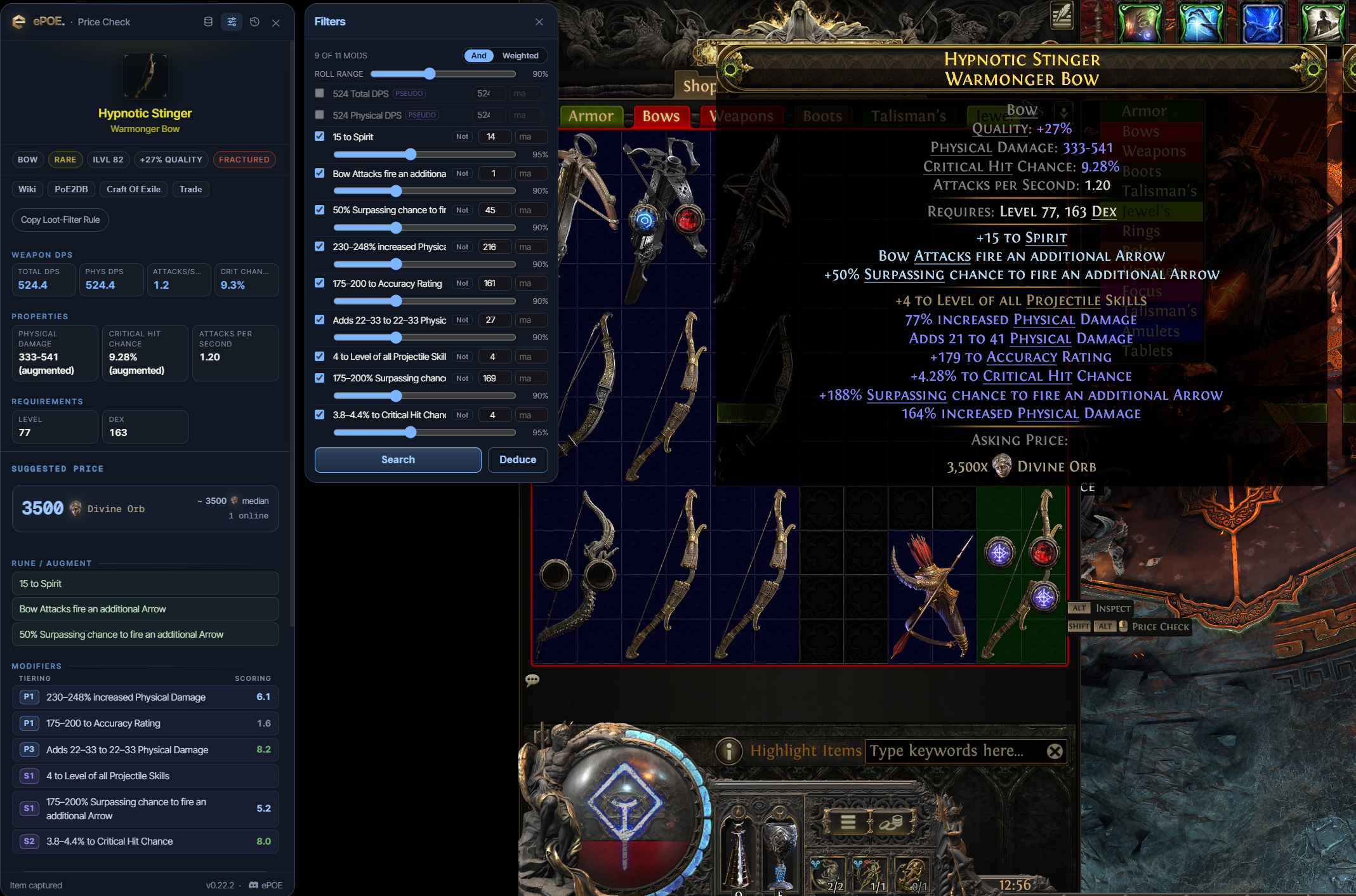
The extras on the price panel: a market benchmark strip, the Market Value card and Live Exchange rate for currency, a Mods tab with the base's full modifier pool and the Omen of Whittling target, and a Compare tab against what you have equipped.


The extras on the price panel: a market benchmark strip, the Market Value card and Live Exchange rate for currency, a Mods tab with the base's full modifier pool and the Omen of Whittling target, and a Compare tab against what you have equipped.
Where to start
All of these live on the panel your Price Check hotkey opens.
If you prefer a keyboard shortcut, check this feature’s current binding under Overlays → Hotkeys. Bindings can be changed, so use the one shown in your app.
- Read the benchmark strip in the header — the market price, its day change and a seven-day sparkline — for uniques the market cache carries; rare gear has none.
- Price-check a currency, Omen, essence, rune, fragment, gem or crest to get the Market Value card and the Live Exchange rate against Divine and Exalted Orbs.
- Open the Mods tab to see every modifier the base can roll, grouped by prefix and suffix with tiers, item level and weight.
- Check the whittling readout above it: it flags the lowest-level modifier, the one an Omen of Whittling would remove.
- Open the Compare tab to diff the item against the same slot on your highest-level character; it reads your characters through the connected PoE account’s OAuth-backed character API.
Currency and bulk prices: Market Value vs Live Exchange
Currency and the other things traded in bulk — Omens, essences, runes, fragments, gems, Verisium crests and the like — skip the item search. The panel shows two prices instead, and they answer different questions.
Market Value is the card at the top: the going rate for the league selected in ePOE, from ePOE's market cache. It shows the price in Divine or Exalted with its value in the other, the 24h and 7 Days change, a small price chart and the trade Volume. It loads on its own and never delays the live section. Read it as "what is this worth in this league".
Live Exchange sits under it: what the in-game currency exchange is offering right now, against Divine and Exalted Orbs, from your own machine.
- The big figure is the typical online offer right now — taken across the cheapest offers, weighted by stock. It is not the single cheapest offer, which is usually a handful of bait units nobody can actually buy in quantity.
- from … is that cheapest offer, next to how many offers the typical figure came from. The gap between the two tells you how deep the cheap end is.
- Thin market — not a reliable price appears when the live rate sits far from the Market Value because few people are offering that pair. Compare both sources and available stock before valuing the item.
- Refresh exchange rate asks the exchange again.
The market strip
For uniques, the panel header carries a small Market strip: the aggregate price from ePOE's market cache, its day-over-day change and a 7-day sparkline. It loads separately from the live search and never delays it. Rares and magic items have no market row, so the strip simply doesn't appear.
Use it as a sanity check. A live result far below the market strip needs investigation: rolls, sample size, cached data and availability can all explain the difference.
Try it in your next session
Start with the first action in the walkthrough, check the values and state the app shows, then continue with the settings that suit your character or workflow. Your own configured hotkeys and selected league take priority over an example in a screenshot.
Download ePOE · Read the current changelog · Browse the guides