 ePOE feature guide3 min read
Price Log in ePOE: A Practical Guide
Every price check, synced to your ePOE account so it's the same list on the website.


Every price check, synced to your ePOE account so it's the same list on the website.
An account-synced record of every price check you've run.
Where to start
Open Market → Price Check in ePOE Desktop. If your layout differs, use Help to search for Price Log.
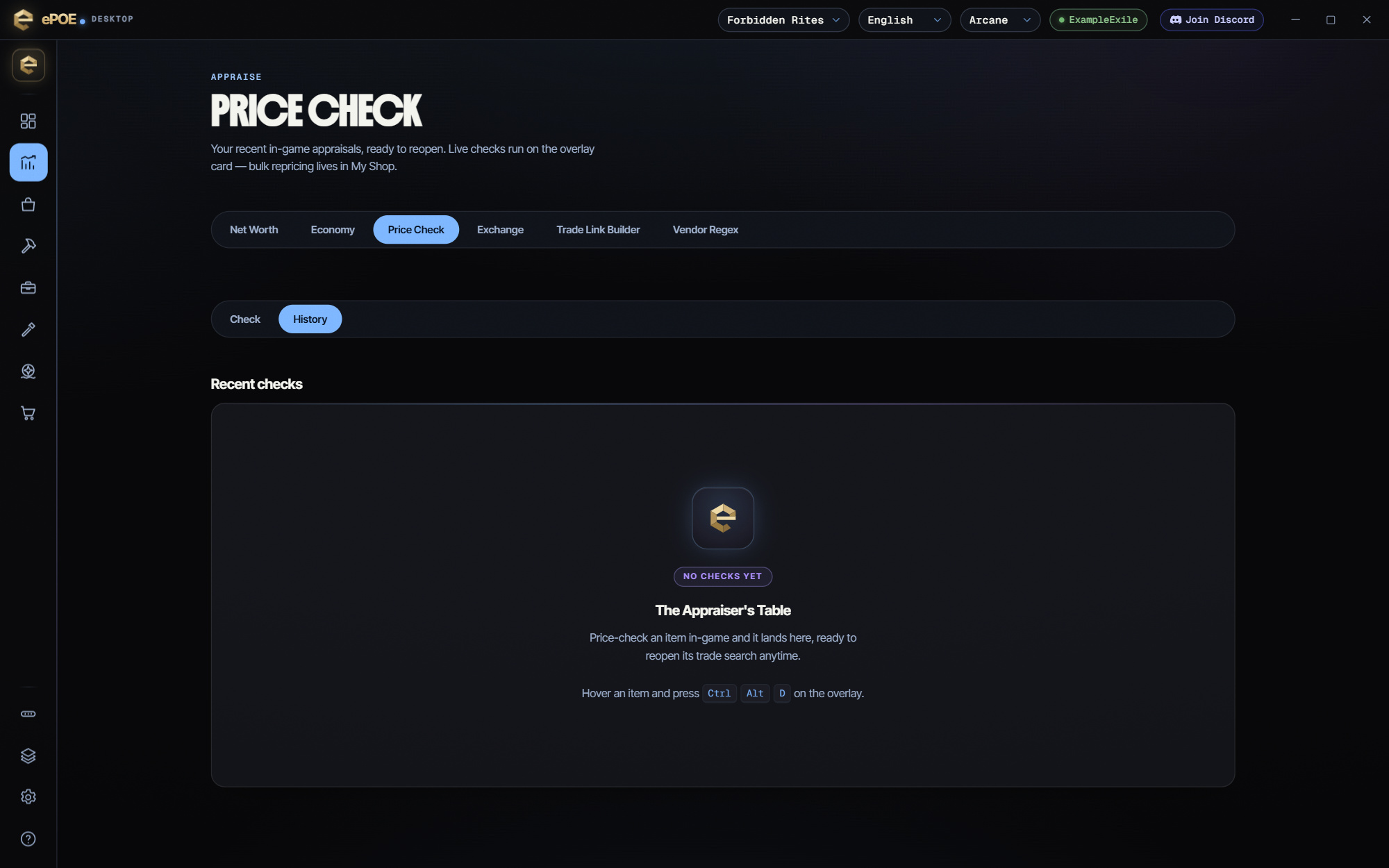
- Every check syncs to the ePOE account you signed in with when the app started.
- Open Market → Price Check and pick the History tab.
- Use it to see what you checked and what it was worth at the time.
- If your account can't be reached, the tab shows the shorter log the overlay keeps on this machine instead.
How the suggested price is worked out
The trade site returns matching listings cheapest first. Pricing from the cheapest few sounds safe, but on a loosened search those are simply the worst items that still matched — so a relaxed search used to price your item low. ePOE now works the number out like this:
- Spread sampling. Instead of the cheapest end, ePOE samples listings spread across the whole result, so the estimate is less dependent on the cheapest available end. It is still bounded by the returned sample.
- Narrow first. The trade site only hands back the cheapest hundred listings. When a search matches more than that, ePOE raises the mod minimums back toward your own rolls before sampling, so the sample is made of genuinely comparable items.
- A ceiling from better listings. One extra search looks for listings that are at least as good as yours on every mod it priced. The cheapest of those is the ceiling: when available, it caps the suggestion within that search’s selected criteria. Inspect other item properties before treating a candidate as equivalent.
- One seller can't set the price. At most two listings from any one seller are counted, so a single wall of copies can't drag the number.
- Your own listings are left out. When ePOE can identify your PoE account, it excludes that account’s listings from the deduction sample.
The lines under a deduced price show all of this: the ceiling, how many listings were sampled across how many matches, whether the search was narrowed first, and how many of your own or repeat-seller listings were left out. Priced on, Dropped and Ignored say which mods the price was based on — socketed runes and filler lines such as stun threshold are set aside rather than searched.
Roll range sliders
Each mod row does not start at your exact roll. It starts at a share of it, so the search already finds items like yours:
Negative rolls ("reduced …") are bounded the right way round, so an item with one still finds itself.
- Roll range — the slider above the mod list moves every mod at once, from 50% to 150%. Lower finds more listings; higher finds closer matches. Scroll over it to step it by one. It is saved for the next item, and it is hidden in Weighted mode.
- Per-mod sliders — in Advanced mode each mod row has its own slider (70% to 130%), for loosening or tightening just that mod.
- Default roll range under Settings → Price Checks sets where every check starts. It is the same setting the panel's slider changes.
Try it in your next session
Start with the first action in the walkthrough, check the values and state the app shows, then continue with the settings that suit your character or workflow. Your own configured hotkeys and selected league take priority over an example in a screenshot.
Download ePOE · Read the current changelog · Browse the guides