 ePOE feature guide3 min read
Quick Upgrade in ePOE: A Practical Guide
Copies the hovered item and opens the Quick Upgrade view on the price panel: a search for an item that beats it, scored by your Path of Building build when one is loaded, or by a weight profile when not.


Copies the hovered item and opens the Quick Upgrade view on the price panel: a search for an item that beats it, scored by your Path of Building build when one is loaded, or by a weight profile when not.
Hover a gear piece and the price panel opens an Upgrade tab that hunts for something better in that slot.
Where to start
Uses the Price Check overlay, so it stops working if Price Check is switched off under Overlays → Overlays. The hotkey is also on Overlays → Overlays → Price Check → Quick Upgrade hotkey.
If you prefer a keyboard shortcut, check this feature’s current binding under Overlays → Hotkeys. Bindings can be changed, so use the one shown in your app.
- Hover the item you are wearing in that slot and press the hotkey.
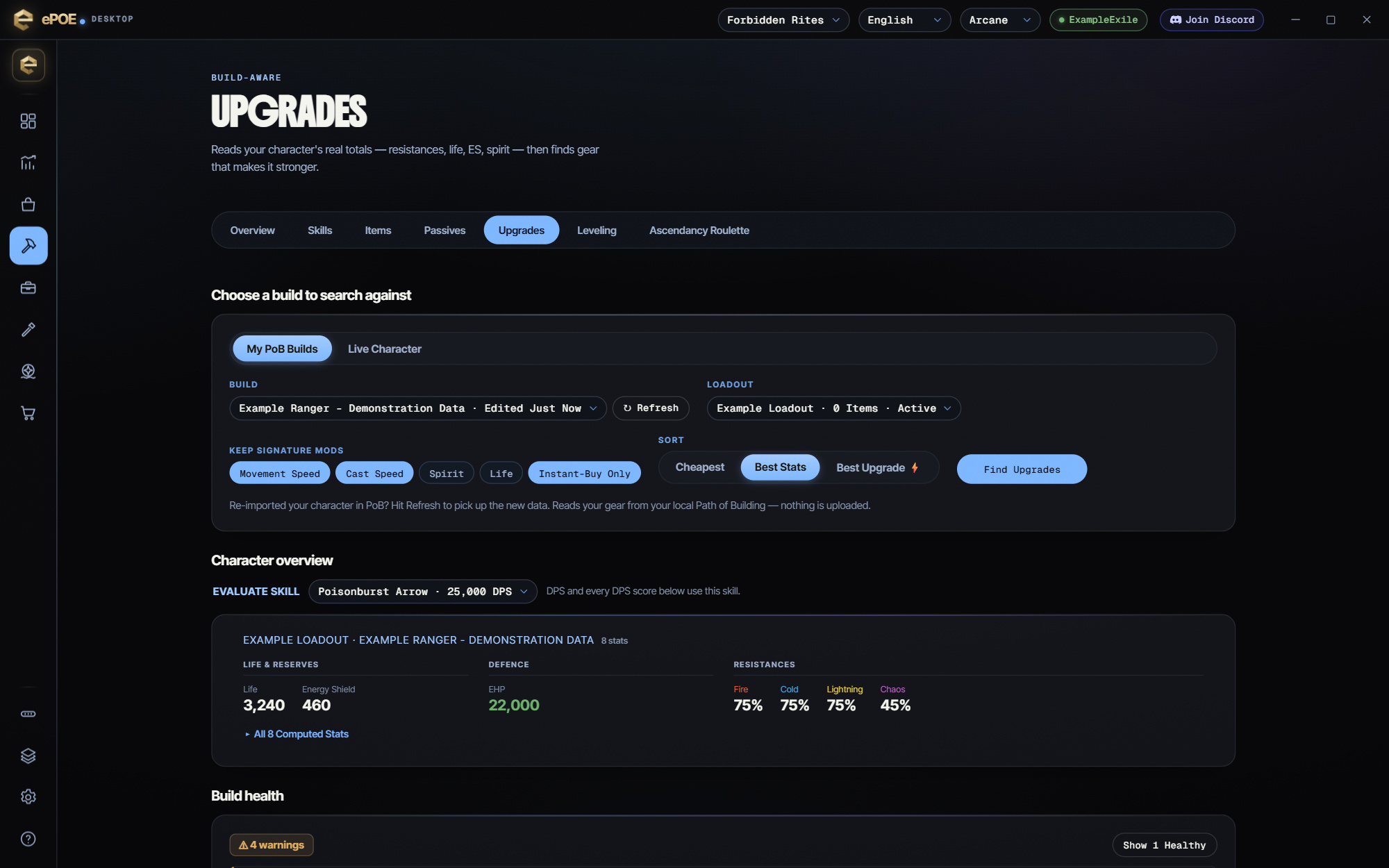
- With a Path of Building build picked under Build → Upgrades → My PoB builds, armour and jewellery listings show the real ΔDPS and ΔEHP Path of Building works out for that swap. Without one, the view's Open Upgrade Finder link takes you there.
- Otherwise, pick a Weight profile in the view's header — the ten bundled archetypes are always there, and Import adds your own — press Find upgrades, sort by Value or Price, and read upgrade per Exalted rather than raw score. Score top N with Path of Building adds ΔDPS and ΔEHP badges to the best rows.
- Buy with the listing's Buy now button; it takes you straight to the seller's hideout. View these upgrades on the trade site → opens the search in your browser.
- Press Valuation to go back to the normal price check for the same item.
- Manage your own weight profiles, and which one is the default, under Settings → Price Checks → Quick Upgrade profiles.
Two engines, one panel
Which search runs depends on whether you have a build loaded:
- With a Path of Building build loaded in Build → Upgrades, Quick Upgrade runs the Upgrade Finder's own engine for the hovered item's slot: a strictly-better search over instant-buy listings, and — with Path of Building installed — a real DPS and EHP change for every candidate. The status line tells you which build and loadout it ranked against and which piece it is replacing.
- Without a build, it falls back to a weighted search. The mods your weight profile cares about become one weighted group, and your current rolls are the minimum. Results are scored against your item.
Build scoring covers armour and jewellery. For other slots, or when the build can't be read, the panel says so and shows the weighted search instead — with an Open Upgrade Finder link when loading a build would help.
Habits that pay off
- Load your build once under Build → Upgrades. The build-scored numbers are far more honest than any weight profile.
- Use Value sort to find the cheap sidegrade, then check the DPS and EHP badges before you buy.
- A result list full of loses badges means your profile is too greedy. Try a lighter profile before widening filters.
Try it in your next session
Start with the first action in the walkthrough, check the values and state the app shows, then continue with the settings that suit your character or workflow. Your own configured hotkeys and selected league take priority over an example in a screenshot.
Download ePOE · Read the current changelog · Browse the guides