 ePOE feature guide3 min read
Roll range sliders in ePOE: A Practical Guide
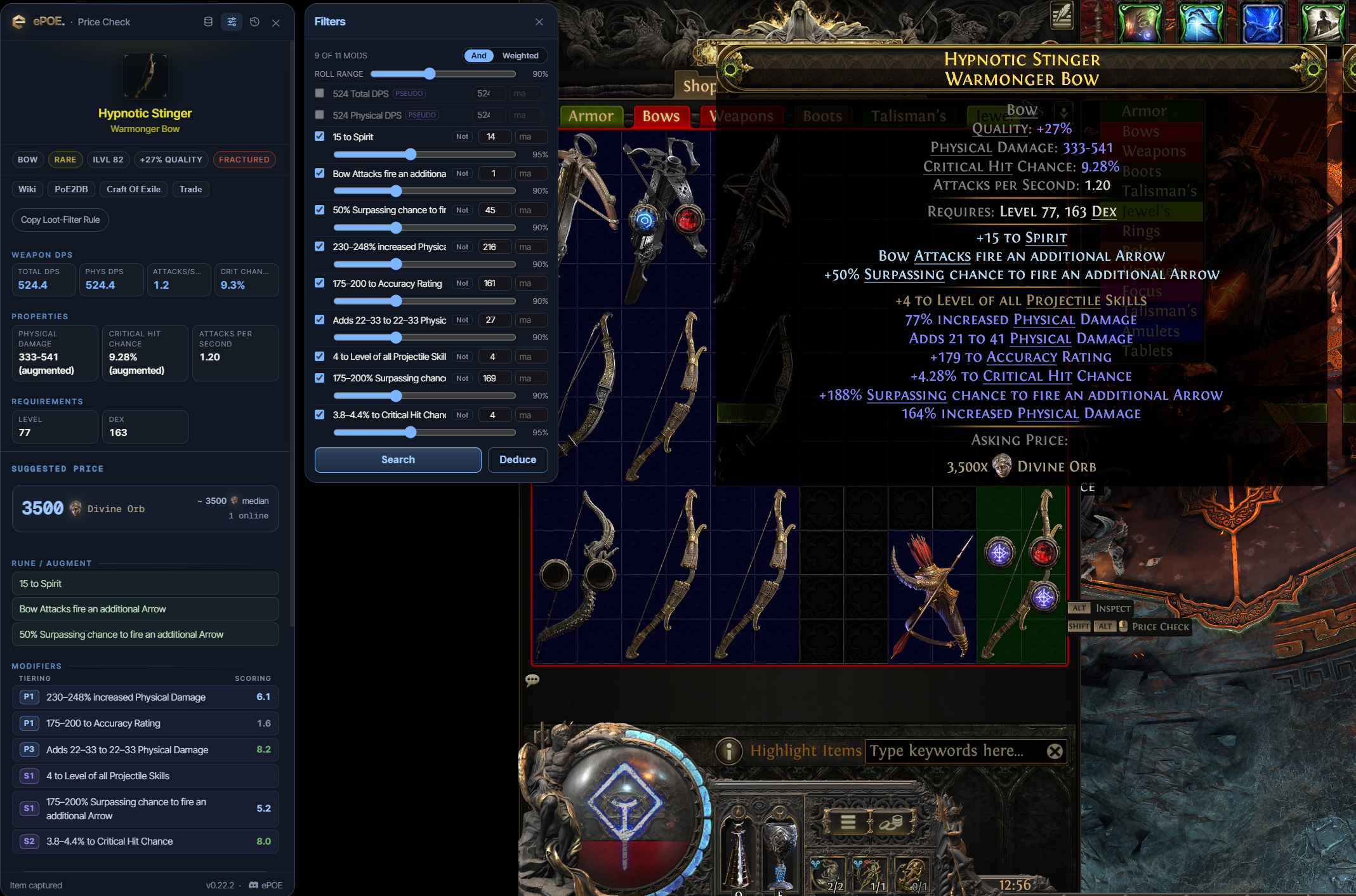
Each mod filter starts from a share of your item's own roll, so a search finds items like yours rather than exactly yours. One Roll range slider moves every mod at once, and in Advanced mode each mod has its own.


Each mod filter starts from a share of your item's own roll, so a search finds items like yours rather than exactly yours. One Roll range slider moves every mod at once, and in Advanced mode each mod has its own.
One slider sets how close a comparable's rolls must be; Advanced mode adds one per mod. Defences and damage start at 90% of your roll, life, resistances, speed and crit at 95%, sockets and levels exact.
Where to start
The global slider is above the mod list on the price panel; the default is under Settings → Price Checks → Default roll range.
If you prefer a keyboard shortcut, check this feature’s current binding under Overlays → Hotkeys. Bindings can be changed, so use the one shown in your app.
- Price-check a rare or magic item; the Roll range slider sits above the mod list in Basic and Advanced mode alike (it hides in Weighted mode).
- Drag the Roll range slider, or scroll over it, to move every mod's minimum at once — lower finds more listings, higher finds closer matches. The value is saved for the next item.
- Switch the panel to Advanced and use the slider on a single mod row to loosen or tighten just that mod.
- Each stat starts from a sensible minimum: 90% of the roll for defences and damage, 95% for life, resistances, speed and crit, and the exact value for sockets, charm slots and "level of all" mods.
- Set where every check starts under Settings → Price Checks → Default roll range.
Roll range sliders
Each mod row does not start at your exact roll. It starts at a share of it, so the search already finds items like yours:
Negative rolls ("reduced …") are bounded the right way round, so an item with one still finds itself.
- Roll range — the slider above the mod list moves every mod at once, from 50% to 150%. Lower finds more listings; higher finds closer matches. Scroll over it to step it by one. It is saved for the next item, and it is hidden in Weighted mode.
- Per-mod sliders — in Advanced mode each mod row has its own slider (70% to 130%), for loosening or tightening just that mod.
- Default roll range under Settings → Price Checks sets where every check starts. It is the same setting the panel's slider changes.
Rares: the mod filter panel
For a rare or magic item the mod panel opens automatically with a row per affix. Each row has a toggle and a min/max.
With Pre-select all stats enabled, supported stats start selected. Review those choices for the comparison you want:
- Turn off everything that does not sell the item. Life, resistances and your main damage stat sell items. A random `+3 to Stun Threshold` does not.
- Let the minimums sit below your rolls. For example, if your ring has 74 life, try a minimum of 70.
- You want comparable items rather than insisting on every exact roll; an exact search can have no matches. The roll range sliders below do this for you.
- Use And mode when you need every selected mod present. Use Weighted mode when you care about the total — a sum of resistances, or added damage across several mods — and do not mind which specific mods contribute.
Pseudo totals exist because that is how players actually shop. Some buyers need a particular resistance; others search for a total across elements. Choose specific filters or pseudo totals to match the requirement you actually have.
Try it in your next session
Start with the first action in the walkthrough, check the values and state the app shows, then continue with the settings that suit your character or workflow. Your own configured hotkeys and selected league take priority over an example in a screenshot.
Download ePOE · Read the current changelog · Browse the guides