 ePOE feature guide3 min read
Sales History: Keep the Details of Every Sale
Your completed in-game sales with their prices, read from the game's own Sales History panel, stored on your ePOE account and synced across your machines. They also show on epoe.io under Shop → Sales History.


Your completed in-game sales with their prices, read from the game's own Sales History panel, stored on your ePOE account and synced across your machines. They also show on epoe.io under Shop → Sales History.
Open the in-game Sales History panel and press Scan Panel: every sale is imported with its price, item names keep their rarity color, and rescanning never adds a sale twice. Your sales sync to your account and show on epoe.io too.
Where to start
Open Shop → Sales History, or press the Feature Bar's Sales History button (on by default) for a window over the game. The Sales History Scan hotkey is unbound by default — bind it under Overlays → Hotkeys → Tool windows.
If you prefer a keyboard shortcut, check this feature’s current binding under Overlays → Hotkeys. Bindings can be changed, so use the one shown in your app.
- Open the Sales History panel in Path of Exile 2 so its rows are on screen.
- Press Scan Panel on the Sales History page, or the Sales History Scan hotkey in game. ePOE reads the panel and adds every sale with its item and price, then shows the Sales History window over the game without taking focus. It types nothing into the game.
- Scan again whenever you like — a sale that is already stored is never added twice.
- Item names show in their in-game rarity color. The game's panel shows no date or buyer, so sales read from it have neither.
- Read the Totals per currency for the current view, and narrow the list with Search item or buyer… and the Currency chips.
- Press Rescan & Sync to check your Client.txt again for completed trades and sync with your account.
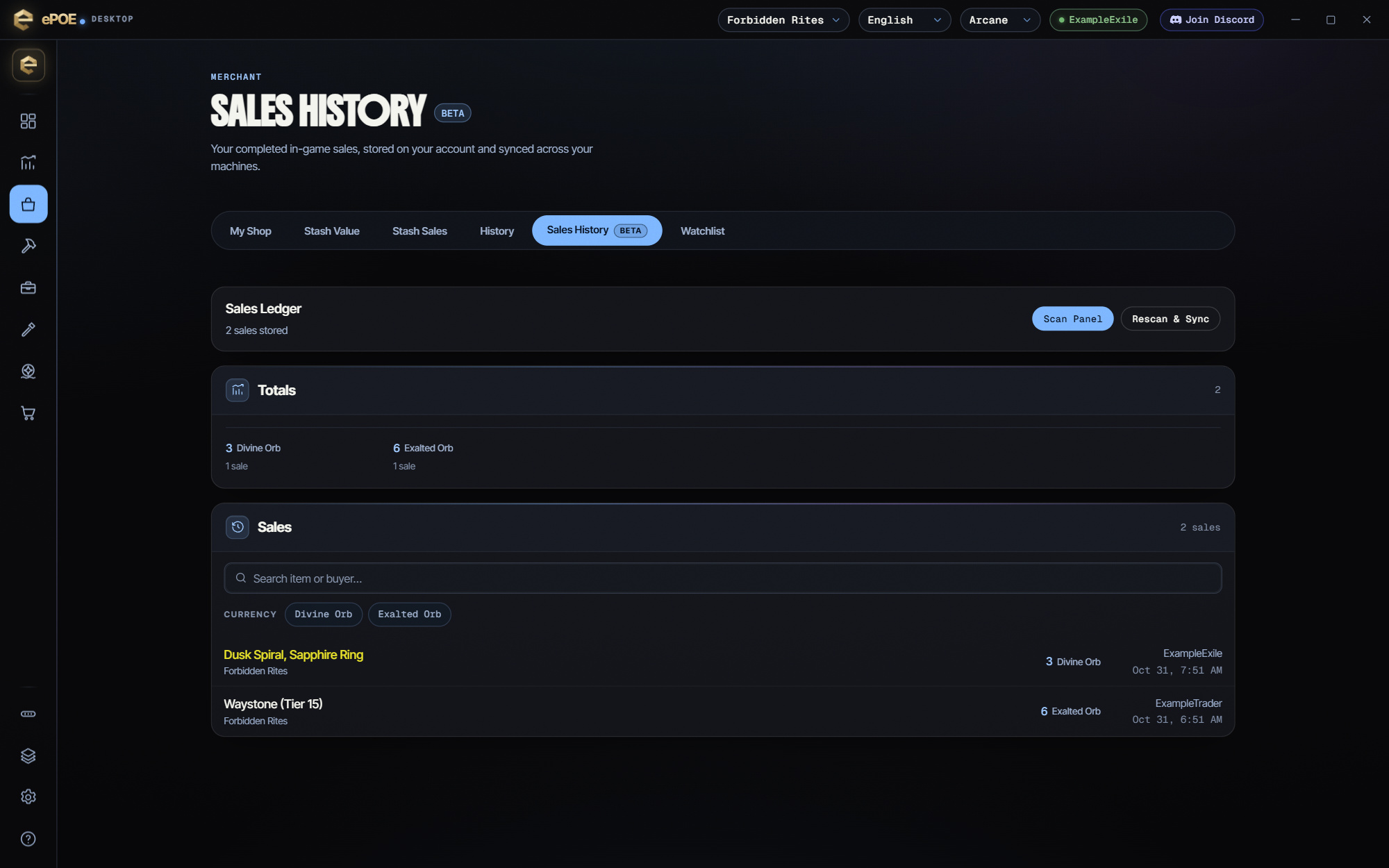
Synced to your account and epoe.io
Your sales are stored on your epoe.io account and synced across every machine you sign in on. They also show on the website: on epoe.io, open Shop → Sales History, or Sales History under Trading Tools in the sidebar.
Sales History doesn't need your Path of Exile session. It reads the game screen and your chat log, not the trade site.
Where the sales come from
ePOE fills the ledger from two places, and each one knows something the other doesn't.
The panel is the only place the game shows a sale's price. A Path of Exile 2 buy whisper names the item but not the price, so a sale picked up from the chat log has no price. That is why Scan Panel is the one to use.
Try it in your next session
Start with the first action in the walkthrough, check the values and state the app shows, then continue with the settings that suit your character or workflow. Your own configured hotkeys and selected league take priority over an example in a screenshot.
Download ePOE · Read the current changelog · Browse the guides