 ePOE feature guide2 min read
General settings in ePOE: A Practical Guide
Application and game-window settings: launching at startup, the game window ePOE attaches to, Client.txt, your monitor, screen reading, and on Linux the experimental Wayland switch.


Application and game-window settings: launching at startup, the game window ePOE attaches to, Client.txt, your monitor, screen reading, and on Linux the experimental Wayland switch.
Where to start
Open Settings in ePOE Desktop. If your layout differs, use Help to search for General settings.
- Open Settings → General.
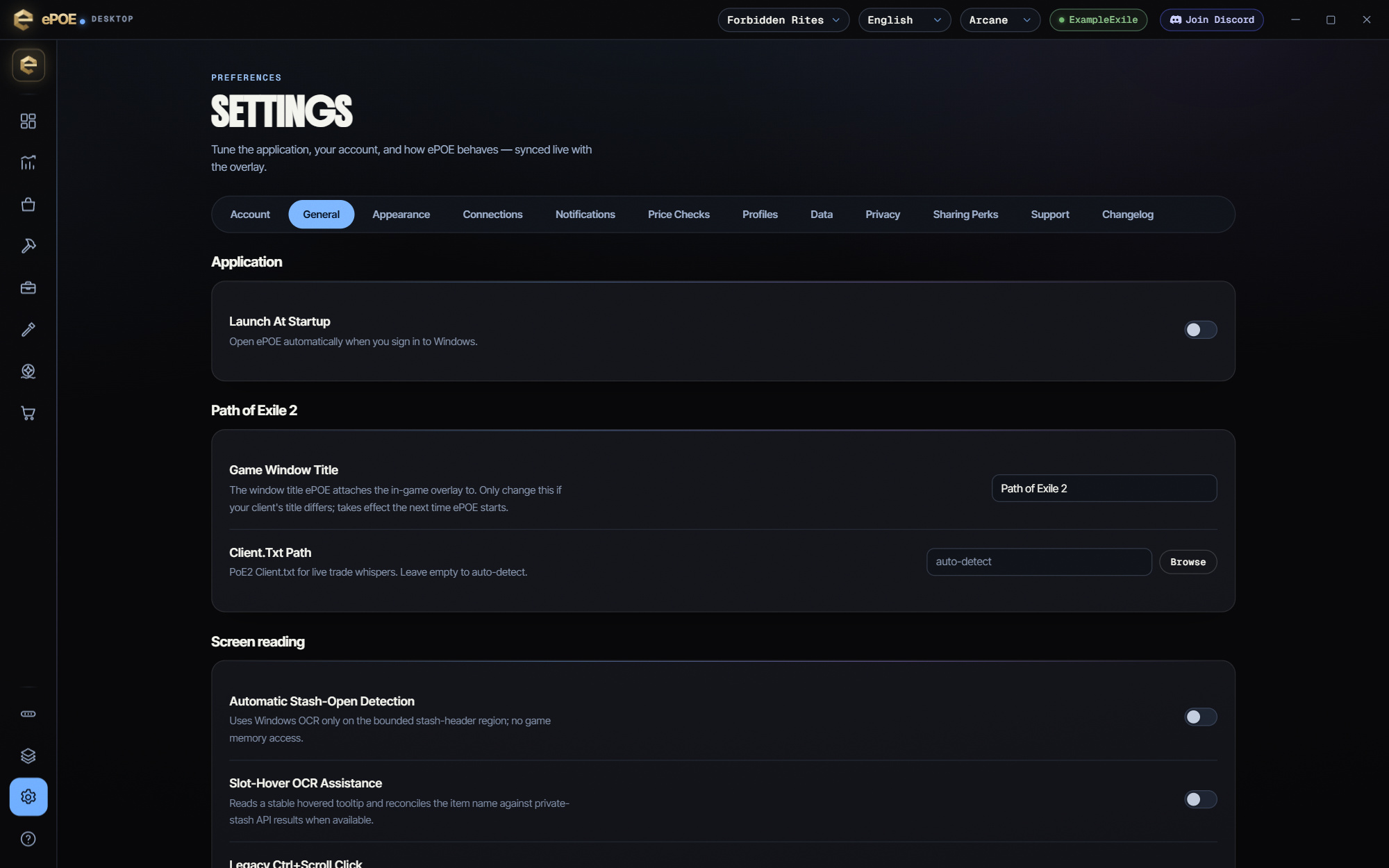
- Application: Launch at startup opens ePOE when you sign in to Windows. Updates never download by themselves — see Updating ePOE.
- Path of Exile 2: change the Game window title only if your client's differs (it applies the next time ePOE starts), set the Client.txt path with Browse or Auto-Detect if auto-detection missed it, and pick the Monitor the overlay uses.
- Screen reading: Automatic Stash-Open Detection and Slot-hover OCR assistance read small, bounded regions with OCR — never game memory — and are off by default. Legacy Ctrl+Scroll Click sends the original Ctrl+left-click while the game is active.
- Experimental (Linux only): Experimental Wayland support, off by default; it requires a restart to take effect.
General
- Automatic Updates and Launch At Startup. Updates never download behind your back: when one is ready, an Update available pill appears in the title bar, and you click it to download and then to restart.
- Game window title — what ePOE attaches to. Only change it if your client's title differs from `Path of Exile 2`; it takes effect on the next start.
- Client.txt Path — leave empty to auto-detect, or use Browse / Auto-Detect. Set it if trade whispers never show up.
- Monitor (multi-monitor setups only) — where the overlay goes when it is not attached. Auto (follow game) is right for most people.
- Screen reading — Automatic Stash-Open Detection and Slot-Hover OCR Assistance, both bounded reads of small screen regions and both off by default, plus Legacy Ctrl+Scroll Click. Stash Prices needs the first one for tab-aware badges.
- Experimental (Linux only) — Experimental Wayland Support, off by default. It needs a restart to take effect.
The feature in practice
Settings (the gear on the left rail) holds everything about the application itself. Overlay behavior and hotkeys live on the Overlays page instead, and the in-game launcher on the Feature Bar page. The tabs separate account, application, appearance, connections, notifications, price-check, profile, data, privacy, sharing, support and changelog controls.
Try it in your next session
Start with the first action in the walkthrough, check the values and state the app shows, then continue with the settings that suit your character or workflow. Your own configured hotkeys and selected league take priority over an example in a screenshot.
Download ePOE · Read the current changelog · Browse the guides