 ePOE feature guide3 min read
Stash Prices in ePOE: A Practical Guide
Paints a price badge over the stash cells you track, with a Total Stash Value drawer over the game and a currency hover card.


Paints a price badge over the stash cells you track, with a Total Stash Value drawer over the game and a currency hover card.
Paints a price badge on the stash cell under your cursor, and only while that tab is open. The grid is found on screen at any resolution or UI scale, quad tabs included, and special tabs like currency and essences use their own slot layouts (beta). A badge hides once its item has moved or sold; two-click calibration is there if you ever need it.
Where to start
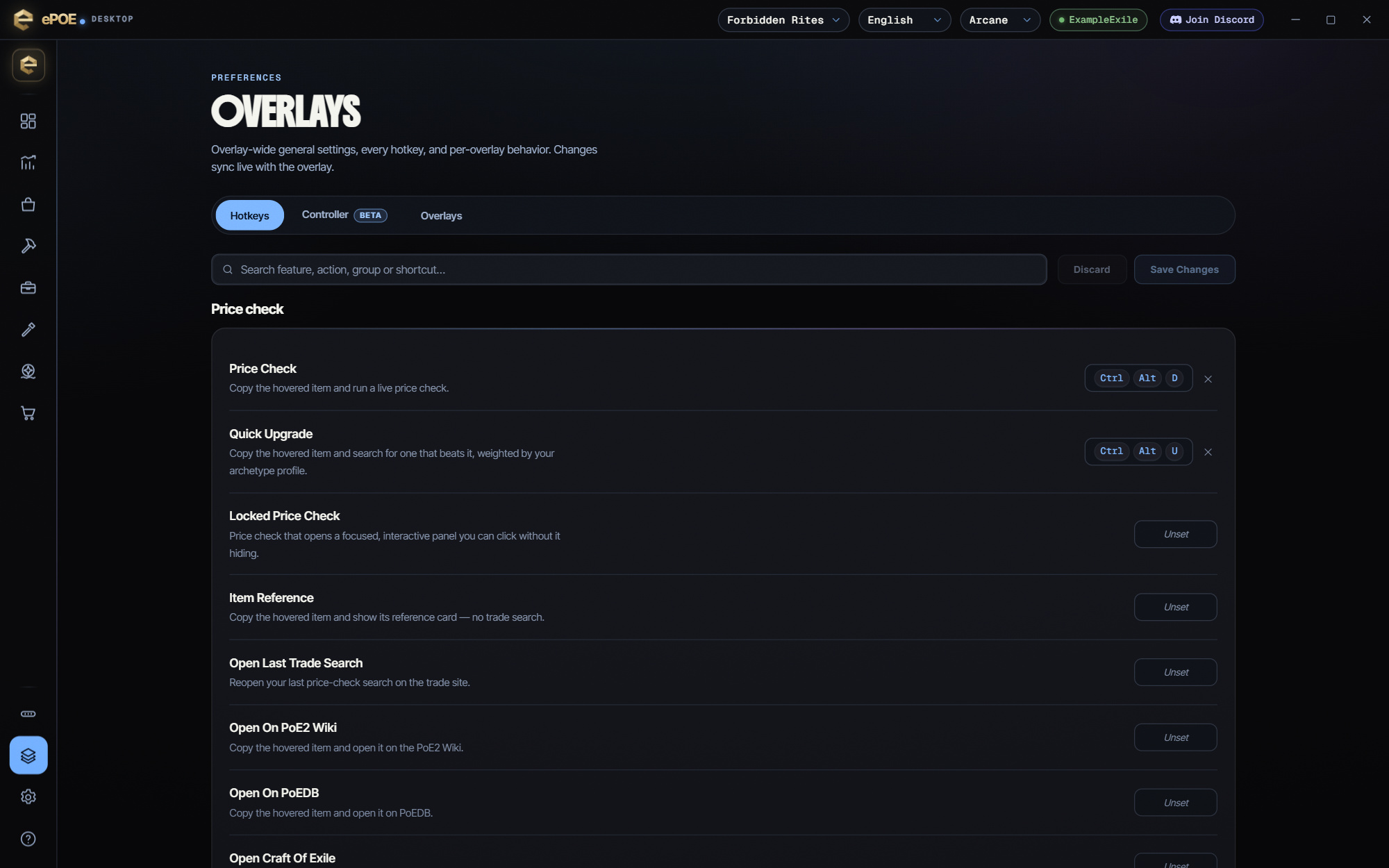
Off by default — switch it on under Overlays → Overlays → Stash Prices first. Untrack Stash Slot and Clear Tracked Stash Slots have their own hotkeys under Overlays → Hotkeys → Stash & regex.
If you prefer a keyboard shortcut, check this feature’s current binding under Overlays → Hotkeys. Bindings can be changed, so use the one shown in your app.
- Switch on Stash Prices under Overlays → Overlays. For badges that follow the open tab, also turn on Settings → General → Screen reading → Automatic Stash-Open Detection (off by default); the currency hover card needs Slot-hover OCR assistance there too.
- Open your stash, hover an item and press the track hotkey — its price is drawn on that cell.
- There is nothing to set up: ePOE finds the stash grid on screen by itself at any resolution, quad tabs included, and special tabs (currency, essence, runes, fragments and more) snap to their real slots.
- Rare gear uses your own last price check of that item and shows "?" until you run one; uniques and currency come from the market cache.
- With Automatic Stash-Open Detection on, badges only show once the stash is confirmed open by its look on screen, and a badge hides on its own when the tracked item has moved or sold. With it off, tracked badges stay visible while the game is attached, whatever tab is open.
- Drag the Total Stash Value drawer anywhere; expand it for the per-tab breakdown and your latest Stash Valuation snapshot. Badge size and the drawer options are in the same pane.
- Only if badges still land off-cell, run Calibrate grid under Overlays → Overlays → Stash Prices as a fallback: two presses of the track hotkey, top-left cell then bottom-right; Escape cancels. Forget all clears every tracked slot.
The Stash Value drawer
With Total Stash Value drawer switched on, a small pill sits over the game showing the total value of your tracked slots. Drag it anywhere. Expand it with the arrow for:
- This tab and All tracked tabs totals, in Exalted (or Divine, if that is your currency display).
- A per-tab breakdown, and how many tracked slots are actually priced.
- Your most recent Stash Valuation snapshot, with its age, for comparison.
Where the overlay can't take mouse input (Linux), use Drawer expanded on the pane to open the breakdown instead.
Currency hover card and quad tabs
- Currency hover card — while the stash is open, hovering a currency shows its Divine, Exalted and Chaos value, 24 h and 7 d change, volume and a sparkline. It reuses the slot-hover OCR, so there is no extra screen reading. It needs Automatic stash-open detection and Slot-hover OCR assistance (both under Settings → General → Screen reading, both off by default) switched on, so it is Windows only.
- Quad-tab grid — quad tabs (24×24) are recognized on their own; this switch only forces the 24×24 grid if a quad tab is ever not picked up.
- Badge size — Tiny, Small or Medium.
Try it in your next session
Start with the first action in the walkthrough, check the values and state the app shows, then continue with the settings that suit your character or workflow. Your own configured hotkeys and selected league take priority over an example in a screenshot.
Download ePOE · Read the current changelog · Browse the guides